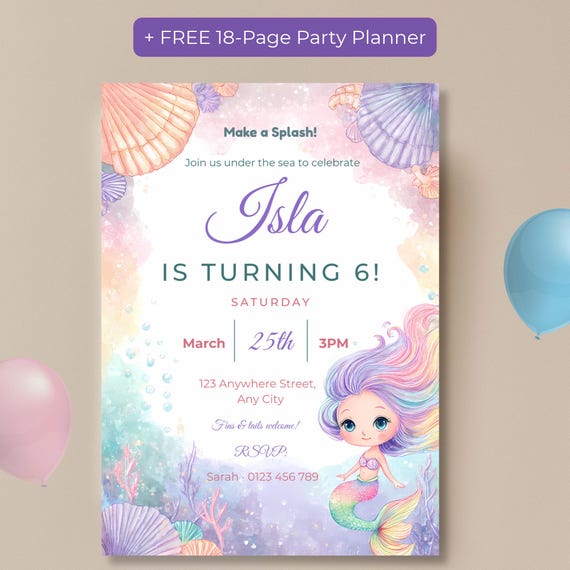
An editable mermaid birthday invitation is a Canva template where parents change the wording, name, age and party details while the illustrated mermaid background stays fixed. It works with a free Canva account on a phone or computer and downloads as a print-ready PDF for 5x7 cards or as a PNG or JPG for texting.
Editable Canva invitations are the quickest way to get a polished mermaid invite without hiring a designer. If you've never used Canva, it can look like a lot of buttons. The good news is that editing an invitation template only needs a handful of them. This guide walks you through it step by step, using a free Canva account.
What you need before you start
- A free Canva account (you can sign up with an email or Google account)
- Your party details: name, age, date, time, address and RSVP contact
- The template link, which usually arrives in a PDF after you buy the template
You don't need Canva Pro for a standard invitation template. You also don't need any design software, and you can edit on a phone, tablet or computer.
Step 1: Open the template link
Download the PDF from your purchase and click the template link inside it. Canva opens a copy of the design in your own account, so your changes never affect anyone else's version. Rename the copy (for example, "Isla 6th birthday invite") so it's easy to find later.
Step 2: Change the text
Click any line of text to select it, then type over it. Work from top to bottom:
- The headline (for example, "Make a Splash!")
- The child's name
- The age line
- The day, date and time
- The address
- The RSVP name, phone number and reply-by date
If a new name is longer than the sample, it may wrap onto two lines. Drag the corner of the text box to widen it, or reduce the font size slightly.
Step 3: Adjust fonts, colors and spacing (optional)
With a text box selected, the toolbar at the top lets you change the font, size, color and letter spacing. A few tips that keep the invitation looking professional:
- Keep the name and age as the largest text on the card
- Stick to the template's colors so the text matches the artwork
- Use letter spacing on short capital-letter lines, like "IS TURNING 6!", for a polished look
- Leave clear space around the artwork so the design can breathe
Most templates keep the background art fixed and make every text element editable, which is what stops the layout from breaking while you work.
Step 4: Check it on a phone screen
Before you download, zoom out to see the whole card at about the size of a phone screen. If any line is hard to read, make it bigger or darker. Text that looks fine on a laptop can disappear in a text message.
Step 5: Download and share
Click Share, then Download:
- PDF Print for printing at home or at a print shop. Use matte or linen cardstock for the best finish.
- PNG or JPG for texting, WhatsApp, Messenger or email.
If your template includes a separate mobile version (1080x1920), edit and download that one for texting. It fills a phone screen without guests needing to zoom in.
A mermaid template made for this process
Our editable mermaid birthday invitation with a free 18-page party planner is built to work with a free Canva account. Every word is editable, the pastel watercolor artwork and rainbow-haired mermaid stay in place, and it includes both a 5x7 printable and a 1080x1920 mobile evite. You also get a print guide, step-by-step instructions, an 18-page printable party planner and a party planner web app. If you're short on time, there's an optional "We Edit For You" add-on where we customize it for you.
The bottom line
Open the link, type over the sample text, check it at phone size and download. With a well-built template and a free Canva account, a mermaid birthday invitation takes about ten minutes from start to finish.
Frequently Asked Questions
Do I need Canva Pro to edit a mermaid invitation template?
No. Standard invitation templates, including this one, work with a free Canva account.
Can I edit a Canva invitation on my phone?
Yes. The Canva app on iPhone and Android opens the same template link, and you can change text and download the finished invitation there.
Can I change the mermaid or the background?
In most invitation templates, including ours, the background artwork isn't editable. The text is fully editable.
What file should I download to print my invitation?
Choose PDF Print in Canva's download menu for the sharpest printed result.