To text a party invitation without it looking cropped, use an image sized for a phone screen — 1080 x 1920 pixels, a 9:16 portrait ratio — rather than a print-sized 5x7 file. Download it as a PNG or JPG and send it as an image attachment with a short text caption repeating the key details, so the invite displays correctly and the information still comes through even if the image doesn't load right away.
You've got a group chat of ten people and a party to fill. Printing and posting invitations feels like overkill when everyone's phone is already in their hand. But if you've ever sent a nicely designed invite by text only to watch it arrive squished, cropped, or half-cut-off in the preview, you know texting an invitation isn't quite as simple as it sounds.
Why a printable invitation looks wrong on a phone
Most printable invitations are designed at 5x7 inches — a portrait rectangle that's roughly 5:7. That ratio prints beautifully, but it isn't what phone screens or messaging apps expect. When you text a 5x7 image, apps like iMessage and WhatsApp often crop the preview to fit their own aspect ratio, which can cut off your date, your address, or the bottom half of your design entirely.
The fix isn't to text the print file. It's to use a version of your invitation designed specifically for a phone screen.
What size actually works for texting
For a digital invite that displays properly as a text message or social story, use a 1080 x 1920 pixel image. That's a 9:16 portrait ratio — the same shape as a phone screen — so it fills the frame instead of getting cropped, and it looks sharp whether the recipient opens it as a text, an Instagram Story, or a WhatsApp share.
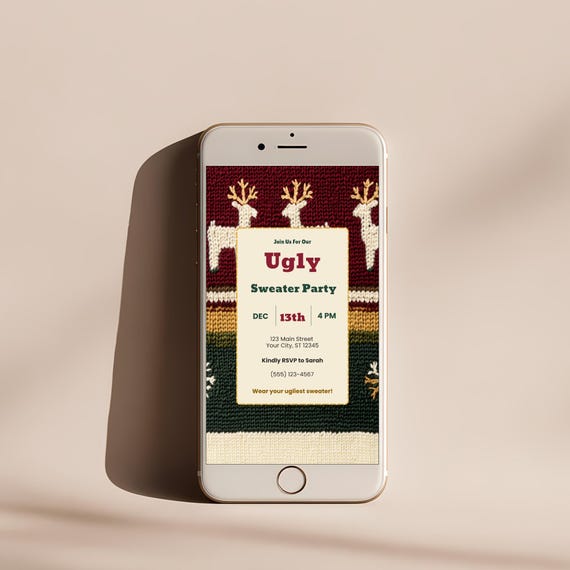
If you're designing your own invite from scratch, that's the size to set up in Canva before you start. If you're using a template, check the listing includes a dedicated mobile-sized file rather than just the print version — the Ugly Sweater Party Invitation Template includes both a 5x7 inch print version and a 1080 x 1920 pixel mobile version in the same purchase, so you can print for some guests and text the rest without redesigning anything.
How to actually send it
- Finish editing in Canva first. Fill in your date, time, address and RSVP details on the mobile-sized version.
- Download as a PNG or JPG, not a PDF — messaging apps handle image files far better than documents.
- Send it as an image attachment, not a link. A link relies on the recipient tapping through; an image shows up instantly in the thread.
- Add a one-line caption with the essentials in text too, in case the image doesn't load on someone's connection: "You're invited — Ugly Sweater Party, Sat Dec 13, 4pm, 123 Main St. RSVP to Sarah."
The bottom line
Texting an invitation works well once the file is built for a phone screen instead of a printer. Get the 1080 x 1920 size right, send it as an image with a short caption, and it'll show up looking intentional rather than accidentally cropped. The Ugly Sweater Party Invitation Template is set up with both formats from the start, so texting the mobile version is a straightforward download away.
Frequently Asked Questions
Can I just resize my print invitation myself?
You can, but stretching a 5x7 design to 9:16 usually distorts the layout or leaves awkward blank space. It's easier to use a template that already includes a dedicated mobile version designed at the correct ratio.
Does it matter which messaging app I use?
Not for the image size — 1080 x 1920 displays well across iMessage, WhatsApp, and Instagram Stories. What varies is how much apps compress the image, so starting with a sharp, correctly-sized file keeps it looking clean.
Should I still send a printed invitation to some guests?
If your group is a mix of people who'd appreciate a physical card and people you'd naturally just text, a template that includes both a print and a mobile version means you're not designing two separate invitations.
What should I write in the text message itself, separate from the image?
A short caption with the date, time, and location as plain text is worth adding, since some recipients will see the caption before the image loads, especially on a slower connection.